AIPRO Trading Suite - Complete User Manual
Download User Guides & Manuals (.DOCX)
Prefer reading offline? Download the complete documents with detailed setup instructions.
Welcome to the AIPRO Trading Suite. This software provides configurable market-analysis, historical-testing, and alert-routing tools for use on TradingView. This manual explains the available settings and operational workflow; it does not provide investment advice or promise trading results.
1. Core Components
The AIPRO Suite consists of three primary tools:
- AIPRO Strategy: The foundational algorithmic strategy containing the core pattern logic.
- AIPRO Scanner: A dashboard that tracks and ranks 75 algorithmic patterns on the current chart using historical results calculated from the selected date range and settings.
- AIPRO Auto-Bot: An alert-routing engine that can switch between patterns according to user-defined historical-ranking rules. The customer controls all settings and third-party connections.
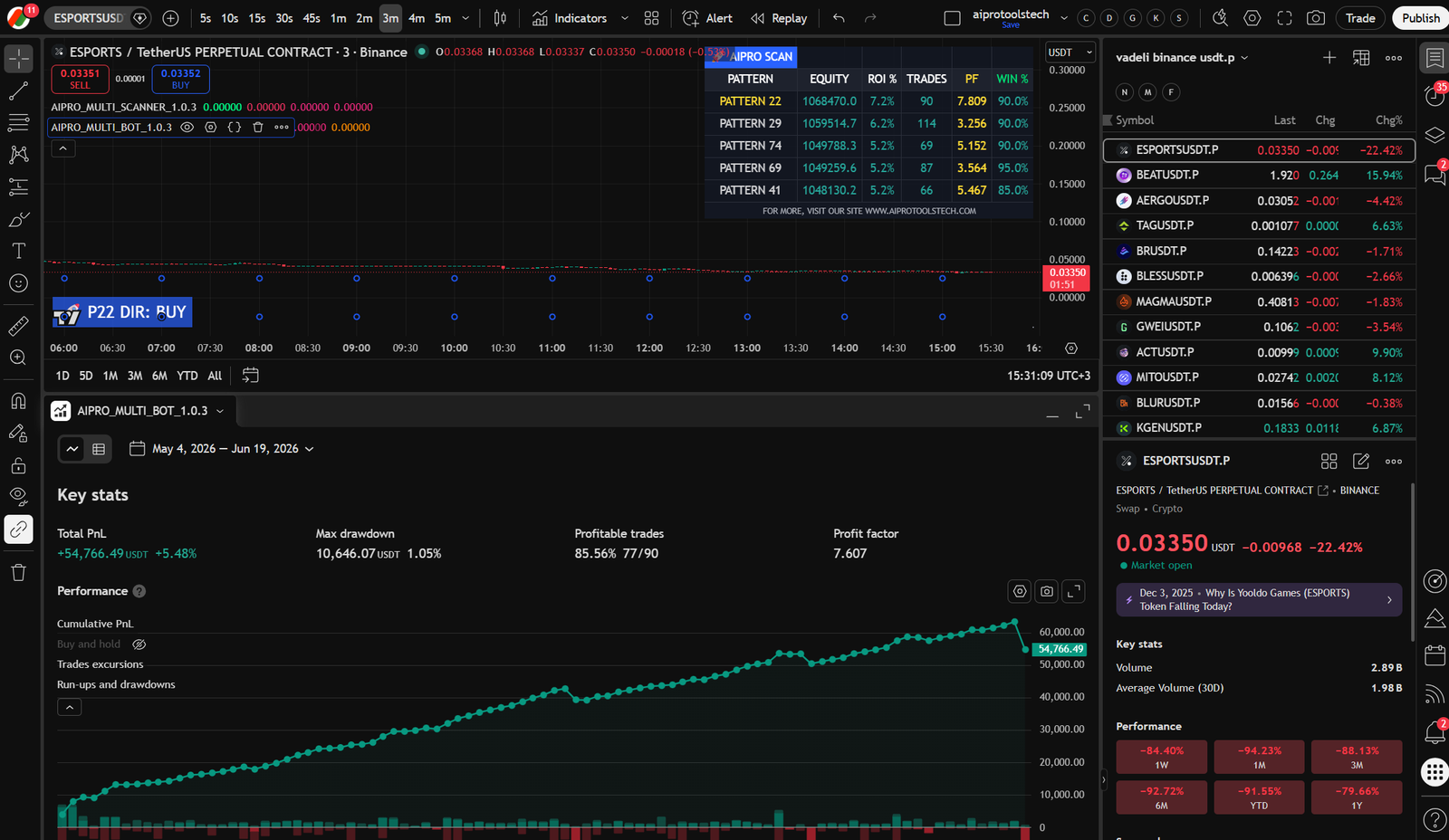
2. Backtest Date Range Configuration (CRITICAL)
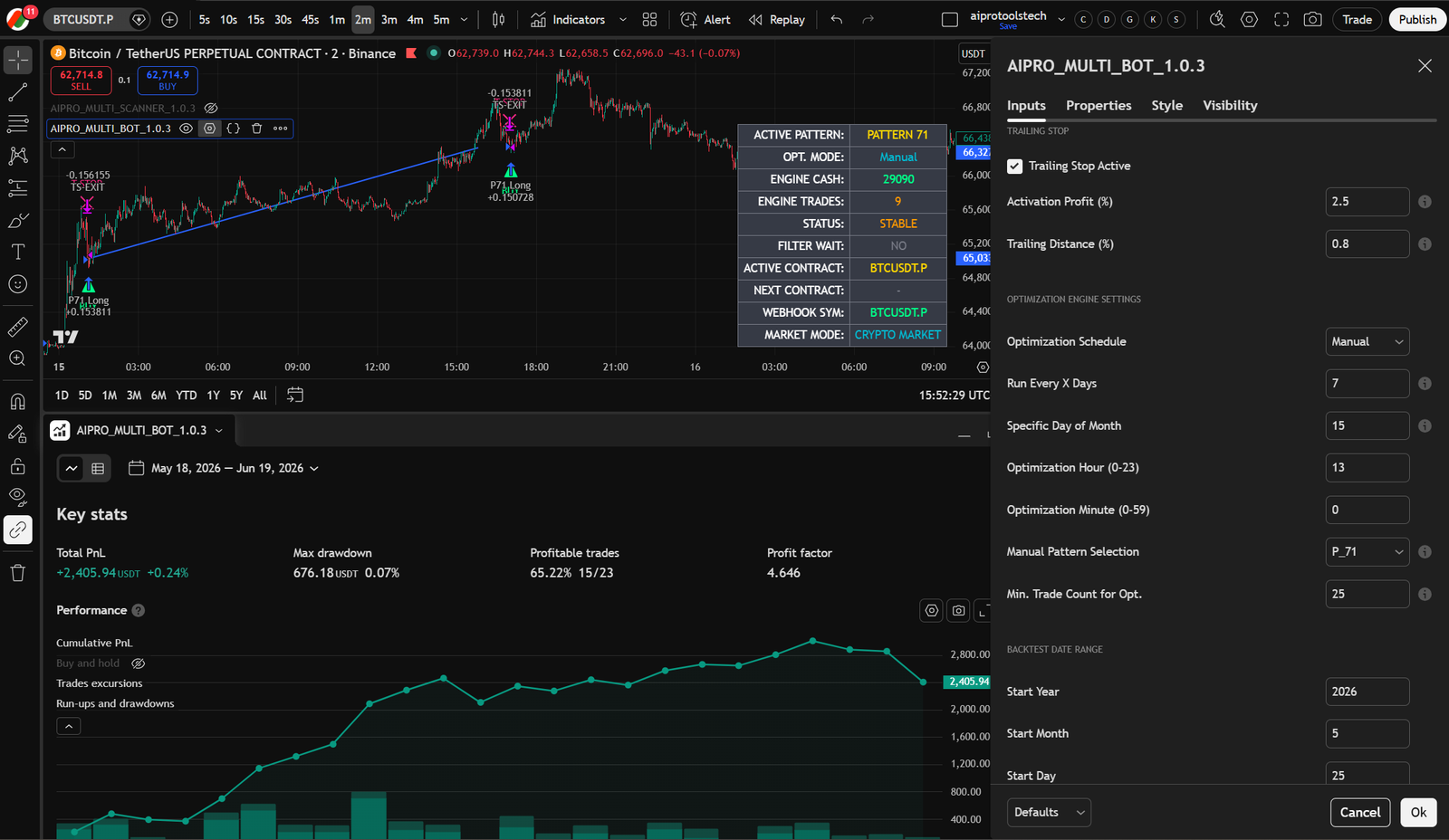
For more stable comparisons between historical and current calculations, how you select your Backtest Date Range is important.
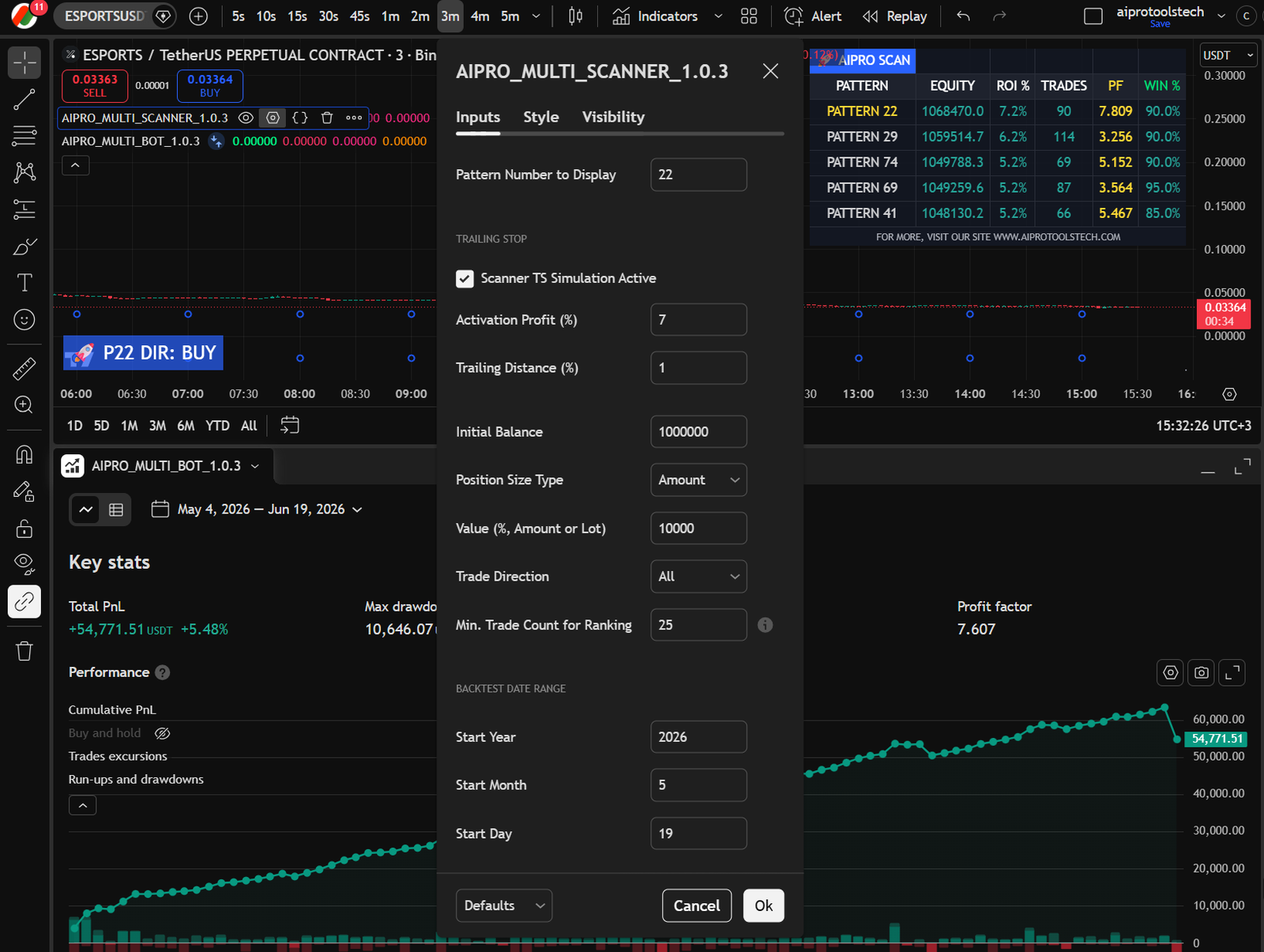
Why do we do this?
TradingView limits the number of historical bars loaded on a chart (e.g., a Premium account loads up to 20,000 bars). If you are trading on a 2-minute timeframe, 20,000 bars represent approximately 4 months of historical data in markets like BIST VIOP.
If you set your "Start Date" to exactly 4 months ago (using all 20,000 bars), a problem occurs in live trading: As new live bars form, TradingView deletes the oldest historical bars from the chart to maintain the 20,000 limit. If the oldest bars are deleted, the underlying math and accumulated profit of our backtest window changes retrospectively. This causes instability in the bot's dynamic optimization.
The Solution:
If your chart supports 4 months of data, consider setting your Start Date to 3 months ago. This can reduce the effect of the oldest loaded bars disappearing from the chart. It does not guarantee stability or future performance; available history and calculations can still change with the symbol, plan, data provider, and TradingView behavior.
3. AIPRO Scanner
Before launching the Bot, use the Scanner to analyze the asset and find the most reliable data.
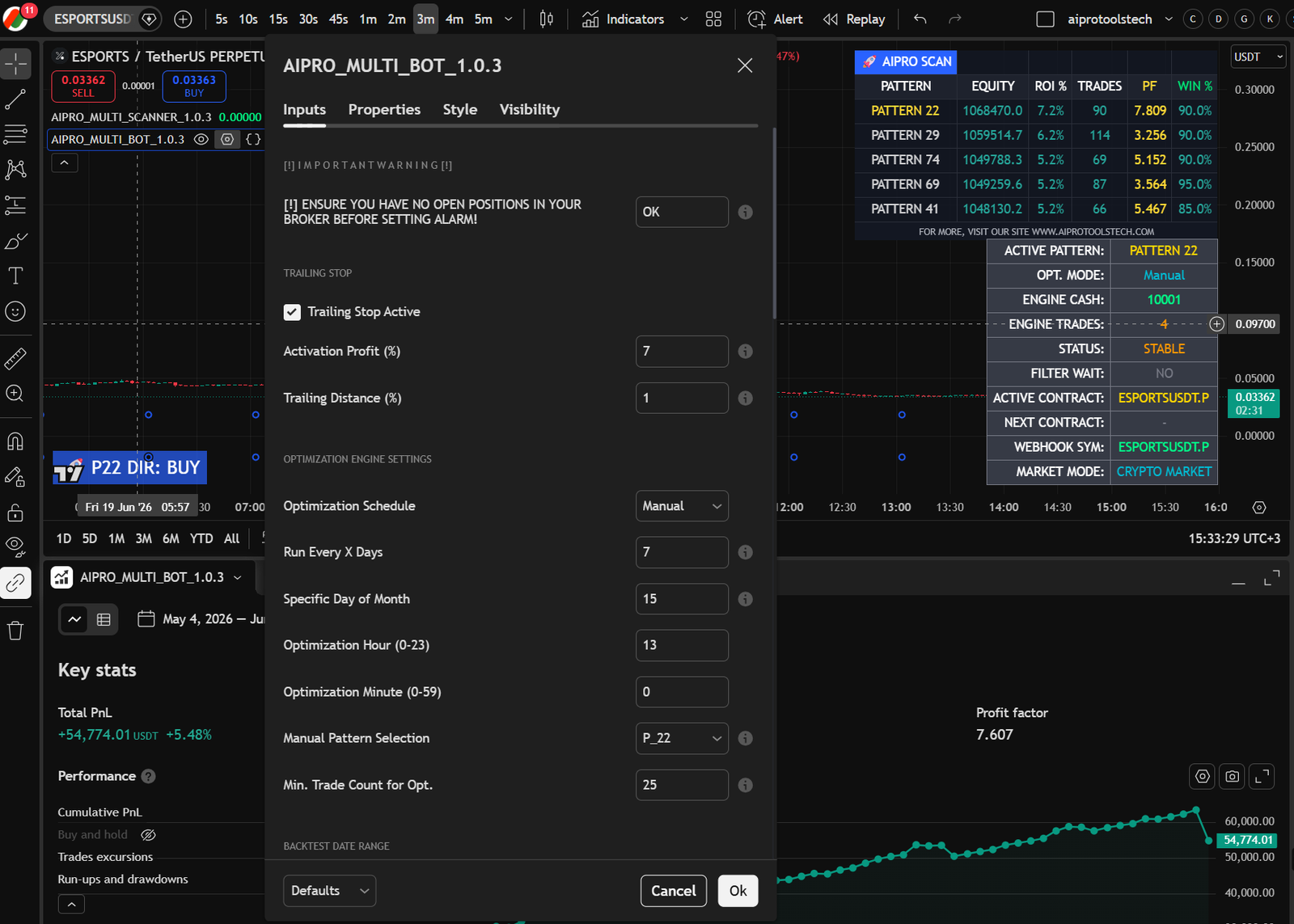
How it Works:
- The Scanner runs 75 unique trading patterns in the background.
- It ranks them based on accumulated profit within your selected Backtest Date Range.
- Win Rate Filter: Patterns that drop below a specific Win Rate are marked as "Filtered/Waiting" (shadow mode) and stop executing real trades until their performance recovers.
Settings:
- Position Size Type: Choose how you want to scale your trades (Lot, %, or Fixed Amount).
- Min. Trade Count: Patterns with very few trades (e.g., 2 trades in 3 months) are unreliable. Set this to a minimum (e.g., 10 or 35) to ensure the top-ranked patterns have proven consistency.
- Trailing Stop: You can activate the trailing stop directly from the UI. Note: If a pattern is stopped out via Trailing Stop, the Scanner is intelligent enough to re-enter the market on the next bar if the underlying engine trend is still strong.
4. AIPRO Auto-Bot
The Auto-Bot generates user-configured TradingView alert messages based on Scanner rules. A separate third-party service may act on those alerts only if the customer independently configures and authorizes that service. AYTUN LLC does not hold funds or execute trades for customers.
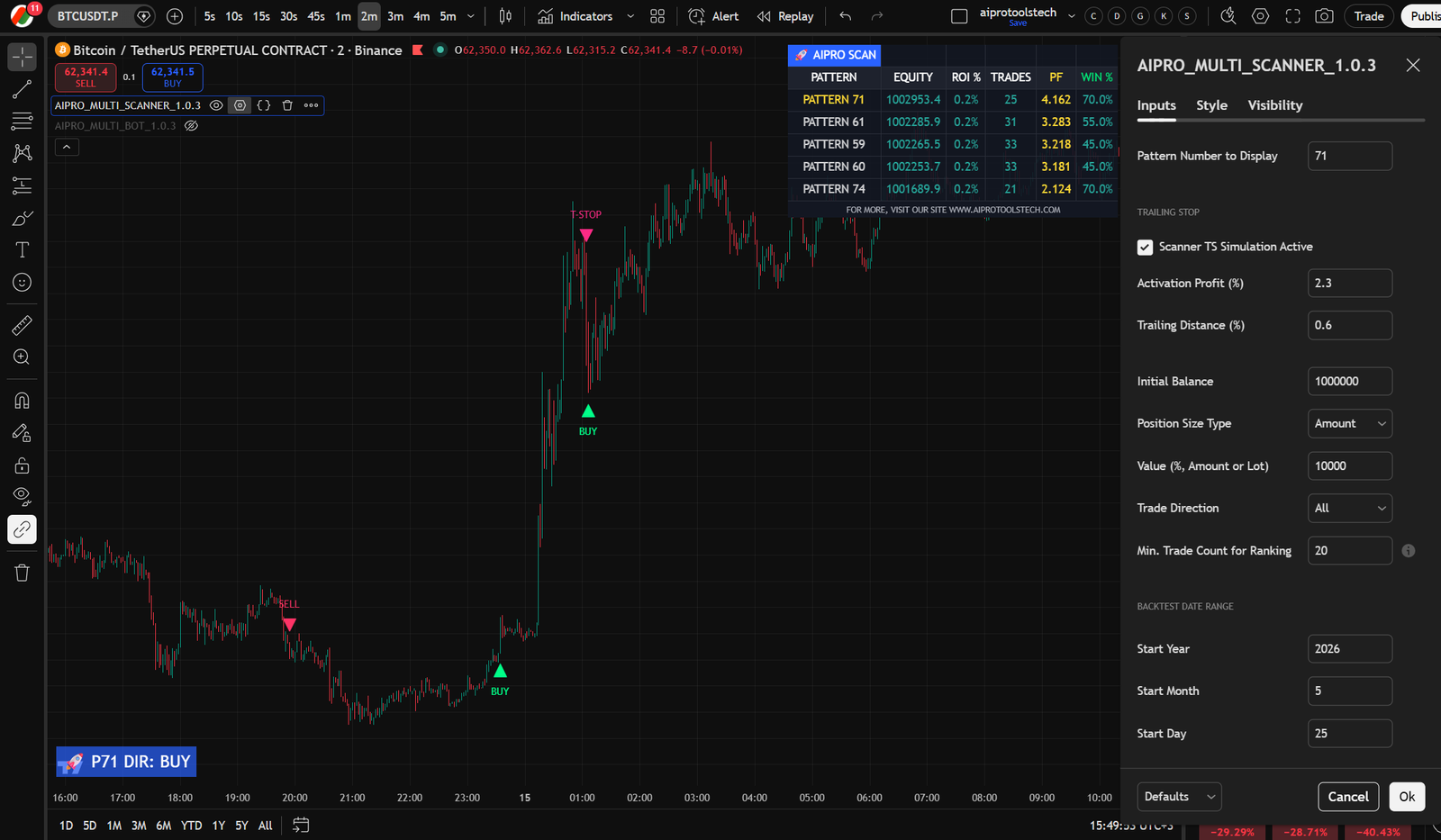
Optimization Modes
- Rule-Based Pattern Switching: The bot scans the available patterns on each closed bar. If another pattern meets the selected historical-ranking rules, the software can switch the active alert configuration. Historical ranking is not a forecast of future performance.
- Manual Mode: You can lock the bot to a specific pattern (e.g., Pattern 12) if you prefer manual control.
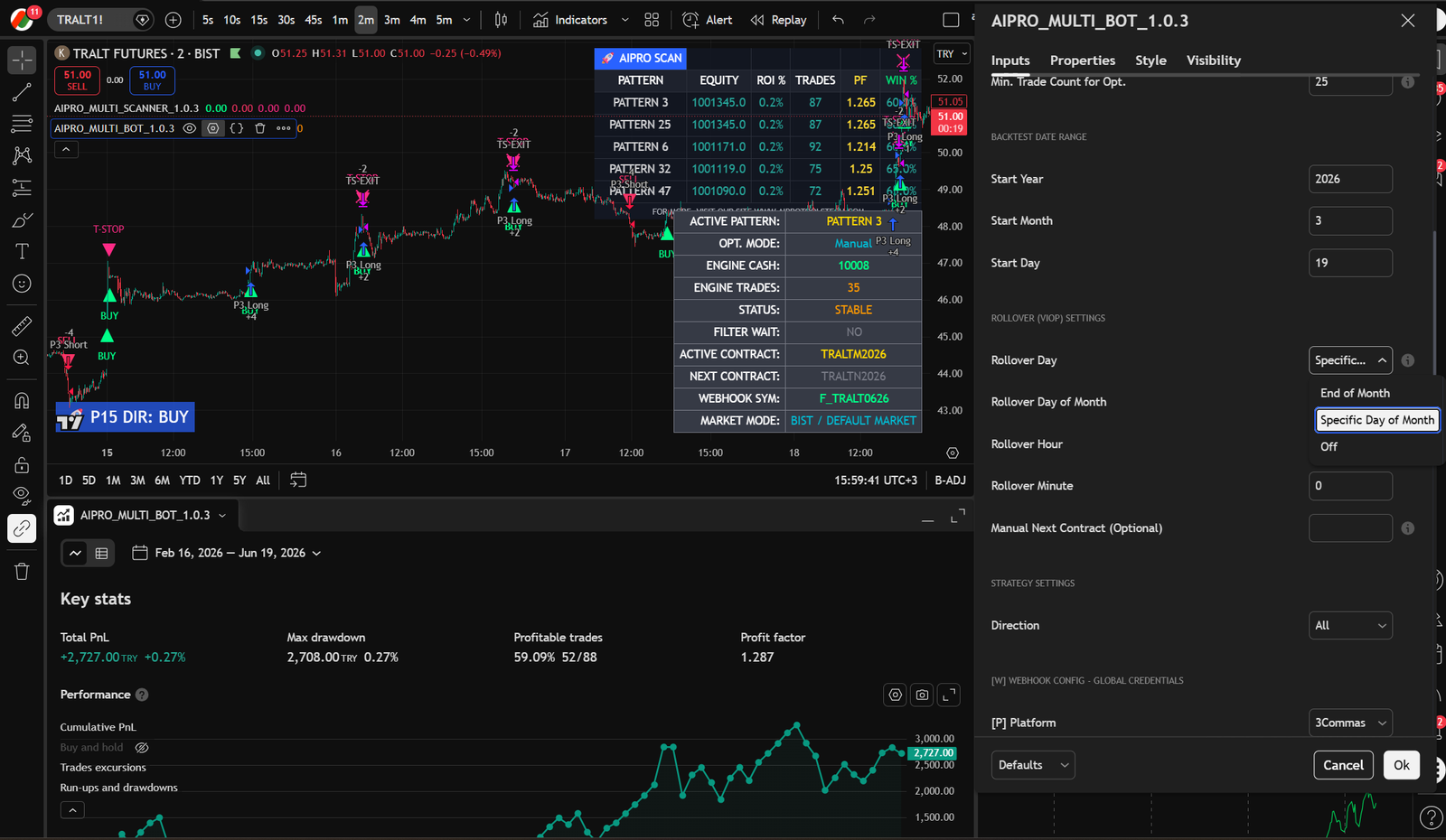
Rollover Management (For Futures/VIOP)
For futures contracts with expiration dates, you can enable Auto Rollover.
- Define the Roll Day (e.g., "Last Business Day of the Month" or a "Specific Date") and Time.
- The bot will automatically close your active positions on the expiring contract, print a
ROLLOVERlabel on the chart, and immediately re-open the same positions on the next month's contract!
5. Webhook Automation Setup
The AIPRO Suite includes an Auto-JSON feature that generates configurable webhook payloads for supported third-party platforms. Review and test every payload against the receiving platform's current documentation before live use.
- Select Platform: Choose your broker/platform (3Commas, Cornix, Wunderbit, Osmanli Menkul, etc.) from the Strategy Settings.
- Enter Credentials: Input your Bot ID and Token/Secret directly into the settings menu.
- TradingView Alert: Create an alert on TradingView. In the alert message box, simply type
{{strategy.order.alert_message}}. The bot will automatically inject the correct JSON for Long, Short, and Close signals!
Long Only. The bot will safely ignore Short signals and close your Longs when the market turns bearish.